Compare and contrast Tasks and Events
| Tasks | Events |
| Use a single date entry | Use a date/time entry for both start and end |
| Represent to-do items (including phone calls) or emails | Represent calendar items |
| Can have an associated reminder pop-up | Can have an associated reminder pop-up |
| No recurring functionality built in | Can have recurring series of events (if setting is enabled) |
| Tasks marked as completed when status of record is changed to completed | Event marked as completed when the end time of the event is passed by the current time |
Manage Public Calendars and Resources
Pro+
Customize –> Activities –> Public Calendars and Resources
- Create the calendar
- Create sharing rules for the calendar (by default no one has access)
- Mark the calendar as active
Sharing rules must be established for access to be granted to users.
A resource can be invited to a meeting, and the calendar will reflect this usage.
See “Managing Public and Resources Calendarsâ€.
How to view public calendars and resources
Pull up the calendar view (you can access this by clicking the day, month, or yearly view from your page):
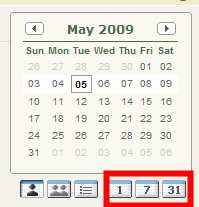
Click change, and select Public Calendars & Resources

Identify and describe the Activity Settings
- Task Fields
- Task Validation Rules
- Task Triggers
- Task Buttons and Links
- Task Page Layouts
- Task Record Types
- Event Fields
- Event Validation Rules
- Event Triggers
- Event Buttons and Links
- Event Page Layouts
- Event Record Types
- Activity Custom Fields
- Defined custom fields apply to both tasks and events
- Activity Search Layouts
- Activity Buttons
- Public Calendars and Resources
- Activity Settings (default on)
- Enable Group Tasks
- Enable Sidebar Calendar Shortcut
- Enable Creation of Recurring Events
- Enable Activity Reminders
- Enable Spell Checker on Tasks and Events
- Enable Email Tracking
- Show Event Details on Multi-User Calendar View
- Enable Multiday Events
Describe the capabilities of Multiday Events
Not to be confused with “All Day Eventsâ€, a multiday event is an event that lasts longer than 24 hours – this includes an “All Day Event†that stretches over more than 1 day. Multiday events cannot be synchronized with Outlook. Multiday events must be enabled (Activities Settings).

