Associate One Gmail Account with Infinite Salesforce Usernames [Tips & Tricks]

Posted October 7th, 2009 in Tips & Tricks by John Coppedge

Just by adding +identifier before the @ symbol on any Gmail or Google Apps email account, you can use an infinite number of email addresses that all drop into the same account.

e.g.

first.last@gmail.com

first.last+org1@gmail.com

first.last+org2@gmail.com

All of these messages will drop into first.last@gmail.com.  You can apply filters via the identifier.

While I absolutely LOVE LastPass for my password management, I must admit that I’ve got a ton of accounts spread out over several domains, and it is quite a pain to manage.  I wish I had known about this two years ago!


Thanks Jeff Douglas for the great tip!

Enlist AutoIT to Perform Data Manipulation [Tips & Tricks]

Posted August 27th, 2009 in Tips & Tricks by John Coppedge


When you work with data, sometimes you need your own personal data masseuse (I could use one for my back too!).  Thoughts like “if only I could put all of these entries on one line“ or “now if only I could put a space in every 15 characters” or “if I have to hit the blank key followed by the blank key any more blanking times, I am going to blank someone” often creep to mind.  The good news is that you can build a tool to tackle a lot of these repetitive tasks using AutoIT, and the language is very accessible.


Example

Compressing a list into a shorter comma-separated list (used this for mass transfer accounts wizard when names did not match exactly and did not have IDs):

image

The very simple code to make this happen:

image

All I would do is run this script and hop into notepad at the start of the file.  You can change the loop settings to match the length of the file, and of course make any changes to keystroke combinations.  You can even get fancy and program it to automatically change to notepad.  I was more comfortable with granular control.


Conclusion

The are an infinite number of ways to use this program.  With a little imagination and some basic understanding, this can be another great tool to add to the toolkit.

I would recommend downloading the AutoIT Full Installation and the Script Editor.  I’ve also included the sample script shown above:

AutoIT Download Page

Sample Script

Check out the online documentation, and here is a good introduction including a list of commonly used keys.  Happy scripting!

The Easy Way: Command Line & Data Loader [Tips & Tricks]

Posted August 19th, 2009 in Tips & Tricks by John Coppedge

At first glance, I thought running the data loader through the command line would be complicated.  Turns out it is actually quite easy.  Essentially all you need to do is create the configuration through the UI and then blast away at the command line:

  1. Create a new folder describing the job; I recommend creating the folder in “C:\Program Files\salesforce.com\Apex Data Loader 12.0\”.  Place your csv file for the job (if required) into this directory.
  2. Start the Data Loader through the UI.  Create and save your field mapping into the above directory.  Configure the action precisely how you want it run in the future from the command line.  Run it (use a 1 record test).  Close the Data Loader.
  3. Copy the “config.properties” file from
    Vista: “C:\Users\%username%\AppData\Roaming\salesforce.com\Apex Data Loader 12.0\”
    XP:  “C:\Documents and Settings\%username%\Application Data\salesforce.com\Apex Data Loader 12.0\”
    to the folder that you created in step #1.
  4. Open a command prompt to “C:\Program Files\salesforce.com\Apex Data Loader 12.0\bin\”.  To run the batch type “process.bat ..\foldername”.  You should see something like this:

image

A few notes:

  1. I am using version 12; this technique may not work with other versions.
  2. You can use an XML configuration, which allows for greater flexibility.  Here are a few resources if you’d like to go this route:
    Using the Data Loader from the Command Line
    Data Loader Manual
  3. To run the Data Loader on a schedule you’ll need to use a 3rd party application such as windows task scheduler.
  4. Sandbox Orgs through the Data Loader: change server host to https://cs#.salesforce.com, and make sure to append .sandboxname to the end of your username.
  5. When scripting this through a batch file you can append the output to a log file by using output redirection (e.g. “process.bat ..\foldername >> logfile.log”).

[via Force.com Blog, Dev 401 Training Applications Module 3]

Batch find and replace Salesforce fields using Excel [Tips & Tricks]

Posted August 6th, 2009 in Tips & Tricks by John Coppedge


Problem

Recently I needed to migrate opportunities from our legacy system into Salesforce.  Being no stranger to the data loader, this is normally not a problem.  The tricky part was that the opportunity needed to be linked to an external ID field on the account instead of the account ID, which cannot be accomplished with the data loader.

Solution

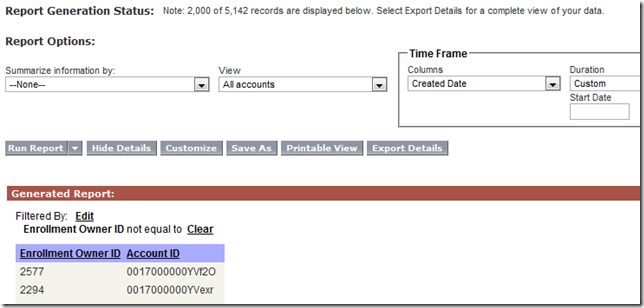
1. Run a report that contains the external id field (Enrollment Owner ID) and Account ID (filtering out where enrollment IDs are not present).
image

Export the report.

2.  Load my Salesforce Find and Replace Template (Excel 2007 required – may work w/2003 & compatibility pack).

Paste in the results of the above report into the left two columns, starting in the yellow section (in this case, the order of the fields needed to be reversed).

Then paste in the External IDs that you are looking to match in the clear column on the right.  Select the Salesforce ID formula (E5) and double click the bottom right plus sign to extend the formula throughout the entire worksheet.

Column E will now output the corresponding ID from column B, when fields D and A match.  The matching algorithm will only find one match, so it is best to have a duplicate free list of external IDs.

image

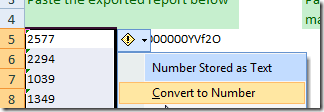
You may need to convert the fields to numeric or text values depending on your external ID.  For this function to work correctly for me, I had to convert these to numbers:
image

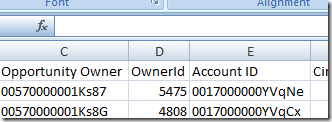
3.  Take the matched Salesforce IDs paste them into a new column in your import file.

image

A quick paste into notepad, select all, cut, and into the worksheet it goes (to remove excel formatting), nicely matched.
image

Credit to Mr Excel for the formula magic.


Update

Before I got the chance to finish this post, I needed to have this template match a data field as well.  I used this additional field and a formula to add a picklist selection to a multipicklist field with existing data (without this formula, the data loader would override the existing selections).

image

In case you’re curious, the formula in H4 is =CONCATENATE(G4,"; Weekly Mailing").


Click here to download the template.

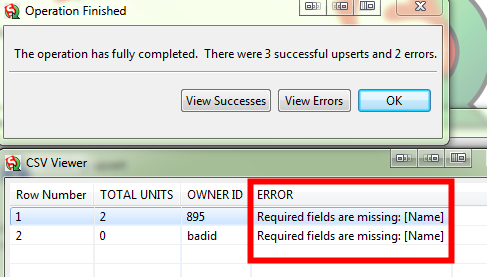
Disclaimer: use at your own risk.  Be very careful playing with the data loader.  Spot check your data and make sure to do a test run of a few records before proceeding with a large data set.

How to restrict access to specific Salesforce Roles [you actually can’t – but here’s how to do it]

Posted July 1st, 2009 in Tips & Tricks by John Coppedge

Sometimes you need to restrict access within Salesforce for certain users or roles.  Unfortunately if you are using the default sharing settings, this is not possible as sharing roles can only grant access, not restrict.

The best solution is to do the following:

  1. Create a public group that includes all roles except for the one(s) with restricted access.
    Role Hierarchy:
    image
    New Public Group:
    image
  2. Create sharing rules that mirror the existing Organization Wide Defaults:
    Current defaults:
    image
    New rules:
    image
    The first rule gives Everyone (Excluding Consultants) the Read/Write access to the Sales Consultants’ accounts and opportunities.  The Management and Administrative roles will have read/write/transfer access through role hierarchy.
    The second rule recreates the existing org wide default sharing rules, but only for the Everyone (Excluding Consultants) group.
  3. Change the org wide defaults for account and opportunity to private (make sure to do this step last).
    image
  4. Repeat for other objects as needed (process may vary slightly).  If you understand role hierarchy this should be pretty straightforward.

When you add new roles to your organization, make sure to add them to your public group, or they will only be able to view their own accounts!