
I haven’t mentioned this yet on the site, but I am a HUGE fan of Survey Gizmo. This is easily my second favorite web app, Salesforce of course taking the top slot on my mental podium. My standard response around the office these days has been "Can’t we just put that into Gizmo?". This could be because we do a ton of surveys (we could conceivably bump up against the 50K/mo response limit of our enterprise account), or it could be because of the awesome flexibility of the product.
We recently added our telemarketing department into our Salesforce org. We added accounts, then got them placing orders using opportunities. Then we added historical orders through an opportunity import, which is how the need for the Find and Replace Template arose.
Telemarketing then says they need to perform follow up surveys after orders are completed. I think- sweet, I’ve got exactly the right tool. And then I remember that very tool has a Salesforce integration feature I’ve meant try for some time.
So here was the approach I took:
1) Create link to survey on the opportunity page. Link only works if the opportunity is complete, and the survey has not been completed. Notice the link passes the opportunity ID and owner ID to the survey. Here’s the formula:
IF(TEXT( StageName )="Complete", IF(LEN( Survey_Result__c ) > 0, "Survey Has Been Completed", HYPERLINK("http://www.surveygizmo.com/s/GIZMOID/tmsurvey?OPP="&Id&"&OWNER="&OwnerId,"Take Survey","_self")), "Survey Results Not Ready")
2) When the survey is completed, link the opportunity to the survey results.
The first page of the survey takes the passed variables and creates hidden fields with both variables. The last field is a link to the current survey result.

This last field is used to update the survey result field (URL) in Salesforce, linking the Salesforce opportunity to the survey result:
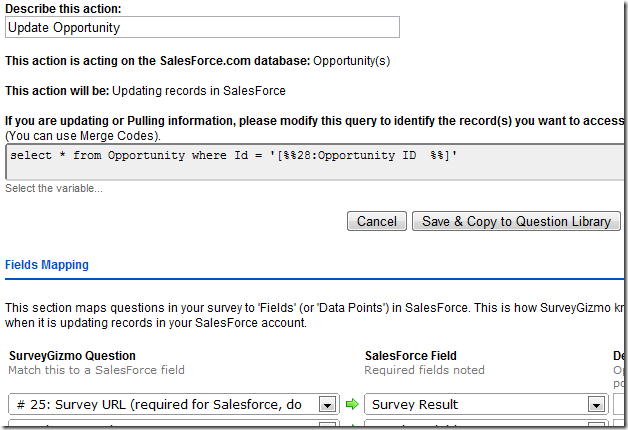
During the survey a question is asked to determine if there should be follow up with the client. In Gizmo, you can create a date field by using a text field and setting date validation in the options of the question. This also allows me to create a follow up task on the opportunity.

3) Redirect from survey back to the opportunity
This shouldn’t anywhere near as hard as it is. The problem is that Gizmo’s web redirect uses the "?=" format which will not fly for a Salesforce URL. I called support on this one, and they suggested hard coding a redirect in raw HTML on the final page. After being put on hold for a minute, they said this couldn’t be officially supported. That’s OK. They planted the seed, I just spent some time holding the watering can. By testing the length of the ID field, I was able to prevent the redirect from triggering unless survey was passed from Salesforce (otherwise the redirect will trigger even when you are editing the survey – rather inconvenient).
Redirecting to Opportunity
<script language=javascript>
var test="[%%28:Opportunity ID %%]"
var result = test.length;
if (result == 15)
{
window.location = "https://na5.salesforce.com/[%%28:Opportunity ID %%]"
}
</script>
This is just one example of the combo in action. Others could include:
- Auto-sending a survey when a SalesForce case closes.
- Creating a web-to-anything form without code.
- Building forms using Salesforce data (I am looking into building a checkout portal using Gizmo as a front-end to Salesforce data and then pushing this data to a service such as Roman Cart).
- Email survey invites to Salesforce contacts (would require an export/import, will hopefully become fully integrated) and push survey result(s) into contact record.
Nothing is perfect. Here are a few issues I have discovered during use:
- Data exports of 20k+ records are often so slow that the browser will time out (IMO there should be an email to download link method of delivery).
- Reporting lacks some flexibility: color choice of graphs, text occasionally overlaps, cannot remove summary text, etc. (hopefully will be addressed with new reporting package, release date TBD).
- Use of hidden fields to store data fields is messy (this doesn’t impact functionality; an alternative would be a data field type that was never displayed, and was always ordered last on the page).
Despite these issues, if you use Salesforce (EE/UE) and have a need for forms/surveys, this is definitely a product to try. Click here to give it a shot!
Full disclosure: I am entered into the affiliate program; if you sign up for an account I will get your first month’s payment. That said, I would be just eager to recommend the product without any financial incentive, so why miss out?